
What is a robots.txt generator?
A robots.txt generator is a tool that writes the robots.txt file for your website. This small text file sits at the root of your domain (yourdomain.com/robots.txt) and tells crawlers such as Googlebot, Bingbot and AI bots which parts of the site they may visit and which parts they should skip.
Writing the file by hand is easy to get wrong. One extra slash can block your whole site, and a missing slash can leave a private folder open. This free robots.txt generator builds the file from simple choices, puts every directive in the right group and format, and warns you about common mistakes before you upload it.
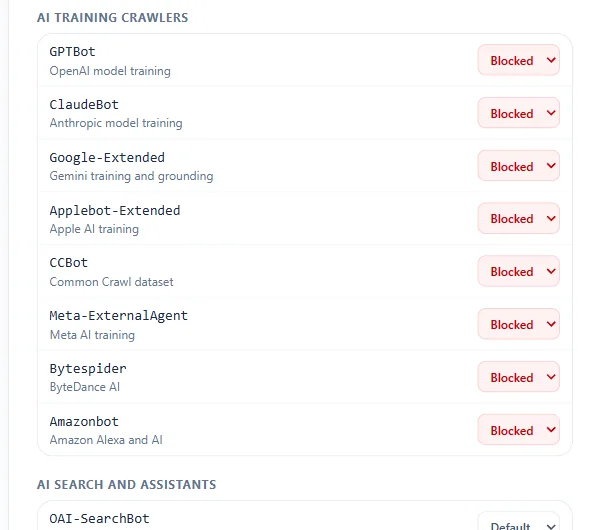
It also covers what older robots.txt tools miss: separate controls for AI training crawlers (GPTBot, ClaudeBot, Google-Extended, CCBot) and AI search bots (OAI-SearchBot, PerplexityBot, Claude-SearchBot), so you can decide how your content is used by ChatGPT, Claude, Gemini and Perplexity.
How to use this robots.txt generator
- 1Pick a preset that matches your site (Allow all, WordPress, Blogger, Block AI training bots or Block all), or start from the default settings.
- 2Choose the default rule for all robots and an optional crawl-delay, then add your full sitemap URL.
- 3Add Disallow rules for folders or pages crawlers should skip, such as /cart/ or /admin/, and Allow rules for exceptions inside them.
- 4Set any search engine, AI crawler or SEO tool bot to Allowed or Blocked. Leave the rest on Default.
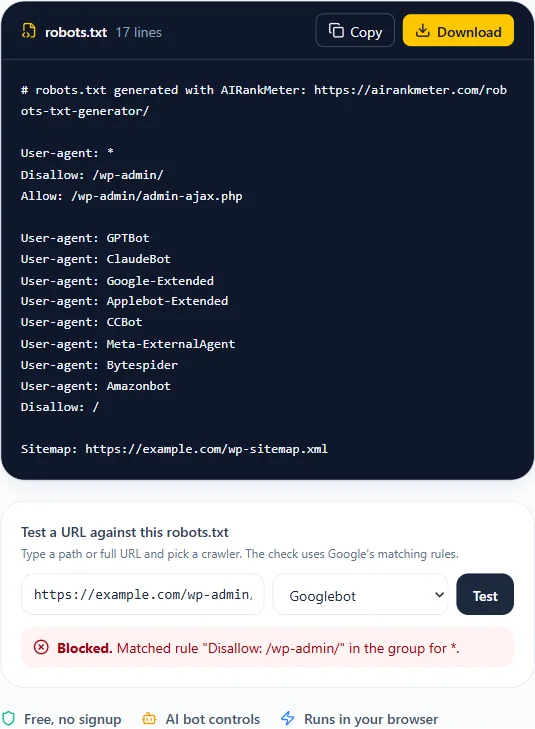
- 5Test a few important URLs with the tester, then copy or download the robots.txt file and upload it to the root of your domain.
Robots.txt syntax explained
A robots.txt file is made of groups. Each group starts with one or more User-agent lines and is followed by the rules for those crawlers. These are the directives the generator writes:
| Directive | What it does |
|---|---|
| User-agent: | Names the crawler the group applies to. User-agent: * means every crawler that has no group of its own. |
| Disallow: | A path the crawler should not request. Disallow: / blocks the whole site. An empty Disallow: blocks nothing. |
| Allow: | An exception inside a blocked folder, for example Allow: /wp-admin/admin-ajax.php. Google and Bing support it. |
| Sitemap: | The full URL of your XML sitemap. You can list more than one, and it applies to all crawlers. |
| Crawl-delay: | Seconds to wait between requests. Bing and some other crawlers follow it. Google ignores it. |
| * | Matches any run of characters, for example Disallow: /*?sort= blocks every URL with a sort parameter. |
| $ | Marks the end of a URL, for example Disallow: /*.pdf$ blocks URLs that end in .pdf. |
| # | Starts a comment. Crawlers ignore everything after it on that line. |
When rules conflict, Google uses the most specific match: the longest matching path wins, and Allow wins a tie. A crawler follows only the most specific group that names it, so a bot with its own group does not also read the rules under User-agent: *.
Robots.txt examples you can copy
These are the files people ask for most often. Change example.com to your own domain before you use them.
Allow all crawlers
The simplest valid file. Every crawler can visit every page, and the sitemap line helps them find your URLs.
User-agent: *
Disallow:

Sitemap: https://example.com/sitemap.xml
Block all crawlers
Use this only on staging or private sites. Remove it before launch, or your site will drop out of search results over time.
User-agent: *
Disallow: /
Block a folder and URL parameters
Keeps crawlers out of private and cart pages and stops them from crawling endless sorted versions of the same list.
User-agent: *
Disallow: /private/
Disallow: /cart/
Disallow: /*?sort=
Robots.txt for WordPress
Blocks the admin area but keeps admin-ajax.php open, because many themes and plugins load front-end content through it.
User-agent: *
Disallow: /wp-admin/
Allow: /wp-admin/admin-ajax.php

Sitemap: https://example.com/wp-sitemap.xml
Custom robots.txt for Blogger
Blogger's own pattern: search and label pages are skipped to avoid thin duplicate pages, and the AdSense crawler keeps full access.
User-agent: Mediapartners-Google
Allow: /

User-agent: *
Disallow: /search
Allow: /

Sitemap: https://yourblog.blogspot.com/sitemap.xml
Block AI training bots
Stops the main AI training crawlers while search engines and AI search bots can still visit your pages.
User-agent: GPTBot
User-agent: ClaudeBot
User-agent: Google-Extended
User-agent: CCBot
Disallow: /

User-agent: *
Disallow:
Should you block AI bots in robots.txt?
It depends on what you want from AI. AI companies run different crawlers for different jobs, and robots.txt lets you treat each one separately:
- Training crawlers (GPTBot, ClaudeBot, CCBot, Applebot-Extended, Meta-ExternalAgent) collect content to train AI models. Blocking them keeps future training sets from using your pages.
- Google-Extended is a control token, not a separate crawler. Blocking it tells Google not to use your content for Gemini training and grounding, and Google states it does not affect your ranking or inclusion in Google Search.
- AI search bots (OAI-SearchBot, Claude-SearchBot, PerplexityBot) fetch pages to show and cite them in AI answers. If you block them, those assistants are less likely to mention or link to your site.
For most businesses that want traffic from ChatGPT, Claude and Perplexity, the safer choice is to keep AI search bots allowed. Want to see which AI bots can reach your site today? Run the AI Crawl and llms.txt checker
Where to upload your robots.txt file
Crawlers only look for robots.txt at the root of each host, so the file must be reachable at https://yourdomain.com/robots.txt. A file in a subfolder is ignored. Here is how to add it on popular platforms:
- Any server: upload robots.txt to the root folder of your site (often public_html or www) and open yourdomain.com/robots.txt in a browser to confirm it loads.
- WordPress: Yoast SEO has a file editor under Yoast SEO > Tools > File editor, and Rank Math has one under General Settings > Edit robots.txt. You can also upload a real file to the root folder.
- Blogger: go to Settings > Crawlers and indexing, turn on Enable custom robots.txt, paste the file and save.
- Shopify: the default file is generated for you. To change it, add a robots.txt.liquid template to your theme.
- Wix: open the SEO settings and use the Robots.txt Editor.
- Squarespace: the file is managed for you and cannot be edited directly, but you can block AI crawlers from the site settings.
Common robots.txt mistakes to avoid
- Using Disallow to remove a page from Google. A blocked page can still be indexed from links. To keep a page out of search, allow crawling and add a noindex tag.
- Leaving Disallow: / on the live site after moving from staging. This is one of the most common reasons a new site never shows up in Google.
- Blocking CSS, JavaScript or image folders. Google needs them to render the page and judge mobile friendliness.
- Treating robots.txt as security. The file is public, so listing a secret folder in it tells everyone where it is. Protect private areas with a login.
- Forgetting that paths are case sensitive. Disallow: /Private/ does not block /private/.
- Expecting one file to cover every subdomain. blog.example.com and shop.example.com each need their own robots.txt.
How to test your robots.txt
Use the tester next to the generator to check important URLs before you upload. It follows Google's matching rules: the most specific user-agent group, then the longest matching path, with Allow winning a tie.
After you upload the file, open the robots.txt report in Google Search Console (Settings > robots.txt). It shows the version Google last fetched, any parsing errors, and lets you ask Google to fetch it again. Google generally caches robots.txt for up to 24 hours, so changes are not always picked up right away.